


How do I connect Power Query to Notubiz in 5 minutes?
Execute the following steps to connect Power Query to Notubiz. You only need knowledge of Power Query, your own business and the Notubiz administration.
Query the council information of about 400 Dutch and Belgian municipalities, provinces and water authorities that use Notubiz with SQL: meetings with their agenda and documents, registers such as written questions and motions, recordings with their transcript and who spoke when.
No technical knowledge is needed nor knowledge on the Notubiz APIs to connect Notubiz to Power Query. This step-by-step plan will tell you exactly which steps you need to go through on Invantive Cloud to create your own dashboard with data from Notubiz.
The steps to connect Power Query to Notubiz are:
- Register an Invantive Cloud account.
- Create a Notubiz database.
- Make the Notubiz database available through the Microsoft OData connector.
- Connect Power Query to Notubiz through the connector.
- Load data from Notubiz into Power Query.
- Build your dashboard.
Invantive Cloud offers a Notubiz connector to download data from Notubiz into Power Query, but there are over 115 other connectors available also for SQL, Power BI Desktop, Power BI Service, Power Query and/or Azure Data Factory.
With the Notubiz connector for Power Query you will by default fetch the data from all connected Notubiz companies in your dashboard. You can limit the number of Notubiz companies that are retrieved in Power Query through the Database settings. For example, you can also limit the connector for Power Query to the data from exactly one Notubiz company. Of course, you can also filter the data by a specific Notubiz company using a filter step in Power Query. The Notubiz connector for Power Query has advanced optimizations for great real-time performance with both a single Notubiz company as well as with hundreds of Notubiz companies.
When you are having questions, please check the forums for Notubiz.
Register Account on Invantive Cloud
Skip this step when you already have an account on Invantive Cloud. Otherwise execute the following steps one time to register an account on Invantive Cloud:
-
Go to Invantive Cloud start page.
Select the Log on-button.
-
Select the Sign Up-button.
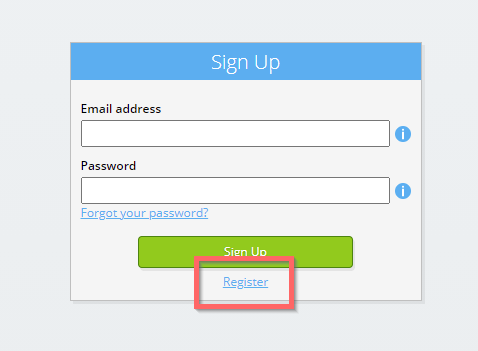
-
Enter your business email address.
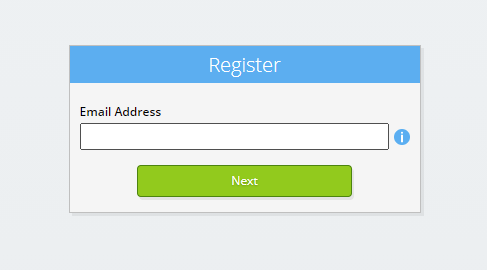
-
Select the Next-button.
-
Enter your personal data.
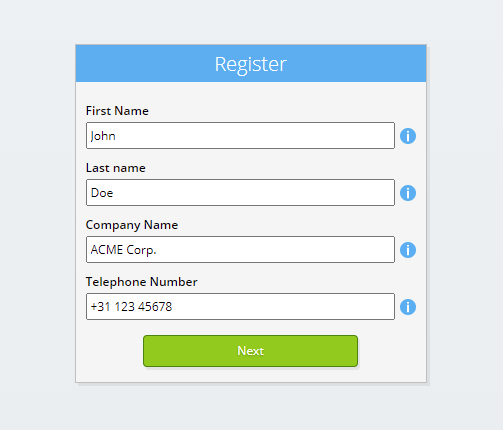
-
Select the Next-button.
Enter your password and repeat the password you entered.
-
Select the Next-button.
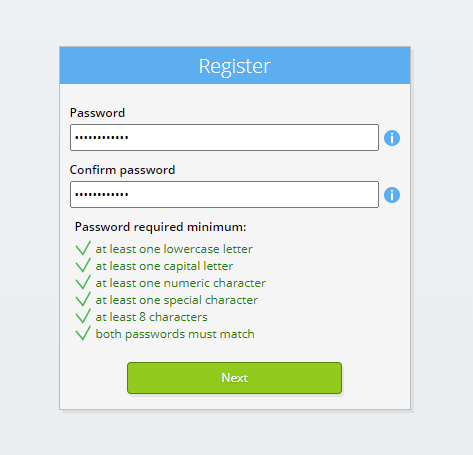
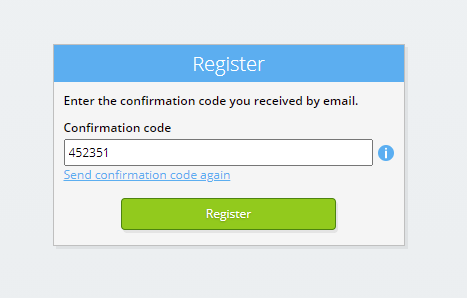
You will receive a six-digit verification code by email within 2 minutes.
-
Enter the six-digit verification code.
-
Select the Sign Up-button.
-
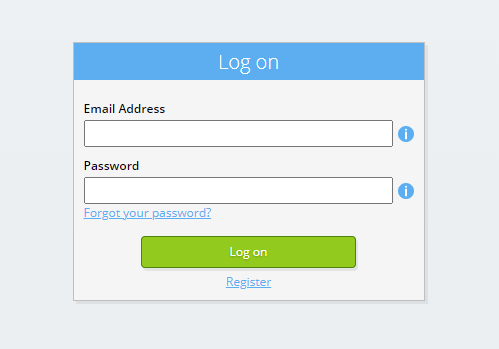
Log on now.
-
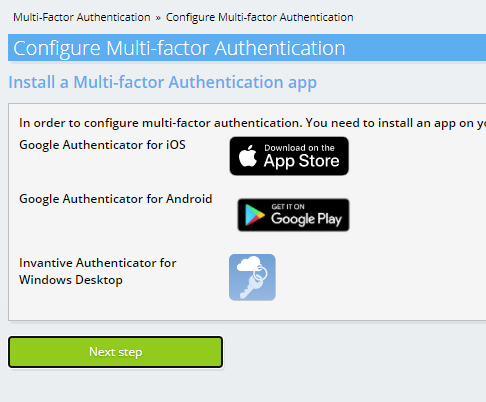
Make sure you have an authentication app installed on your phone. Select the Next-button.
-
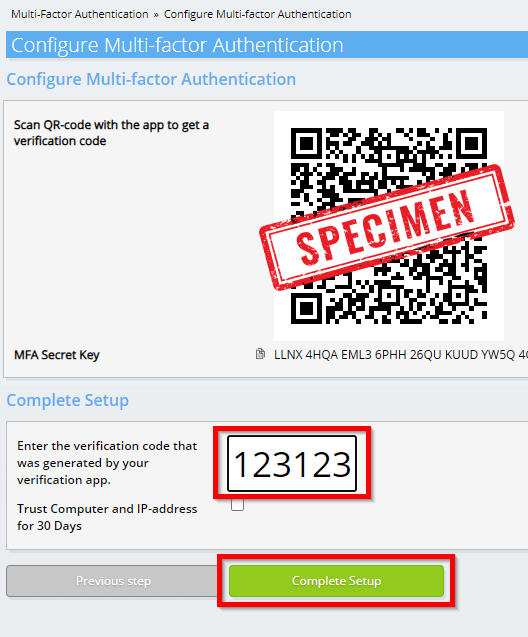
Add the displayed QR code to the authentication app, enter the current verification code, and choose "Finish".
-
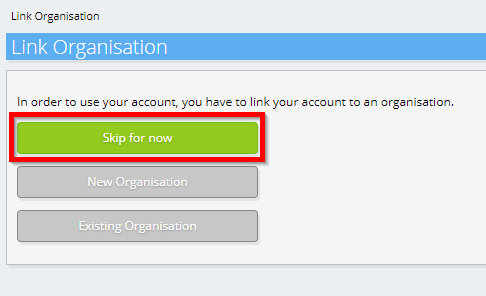
Skip registration of the organisation.
-
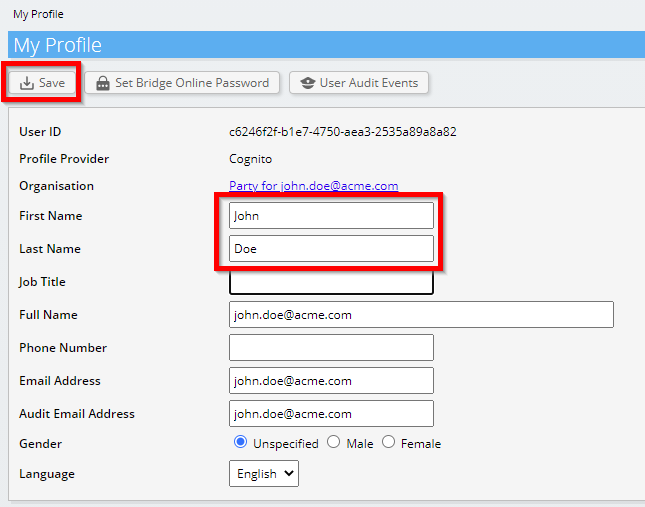
Complete your personal information and choose "Save".
-
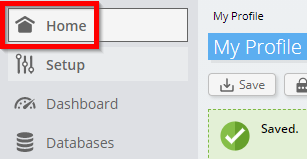
Go to the dashboard.
-
The Invantive Cloud dashboard will be shown.
You now have a login code on Invantive Cloud with which you can set up the connection with Notubiz and numerous other platforms. You will use the same Invantive login code and workflow for all other platforms.
Create Notubiz database
In this step, we set up a database with data from Notubiz. The database is "virtual" because it is not a traditional database, but is fed real-time from Notubiz. Invantive Cloud provides Power Query with a real-time link to Notubiz. The database will be used for all your Notubiz reporting with Power Query. So you only need to perform these steps once.
You now have a login code on Invantive Cloud with which you can set up the connection with {0} and numerous other platforms. You will use the same Invantive login code and workflow for all other platforms.
-
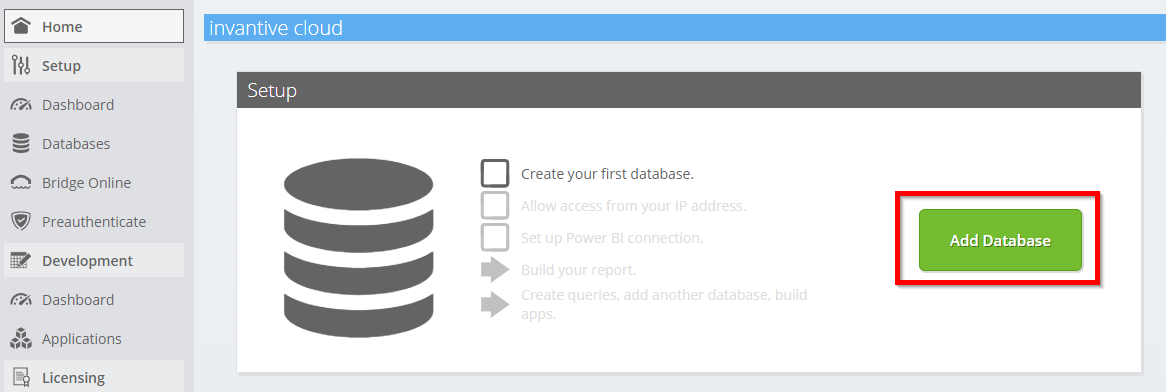
Click the Add Database button.
-
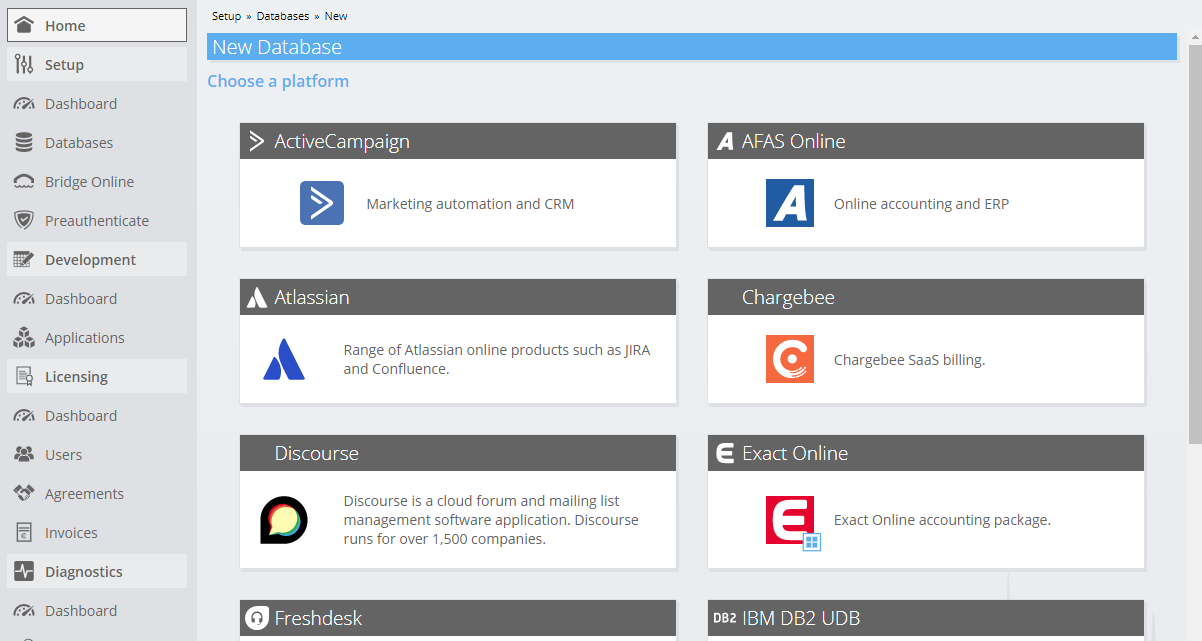
Select Notubiz from the list.
-
Please fill out the form with login information for Notubiz.
Select the OK-button.
The page with the details of the database opens.
-
Check that the box \"Allow Invantive Bridge Online Use\" is selected.This box is selected by default. Without it, Power Query cannot read the Notubiz database.
Congratulations! You can now process data from Notubiz within the Invantive Cloud website. You can do this for example with the interactive SQL editor.
Grant connection from Power Query access to Notubiz
To retrieve the data from Power Query we create a link via Invantive Bridge Online. This creates a "bridge" between the cloud of Invantive and the standard OData connector that is available in every version of Power Query. You do not need to install anything locally: no connector, no ado.NET provider and no Power Query add-on neither.
Execute the following steps to safely use the data from Notubiz outside of Invantive Cloud:
Next to the database you will find an orange text requesting you to allow access from your current location (IP address). Select the nearby orange button.
If you want to use the data through the web versions of Power Query, you must completely disable IP address checking by entering an asterisk ("*").
You are now ready to import the Notubiz data into Power Query.
Configure Power Query connector for Notubiz
You will now pull in Power Query data from Notubiz through the established link.
Execute the following steps:
-
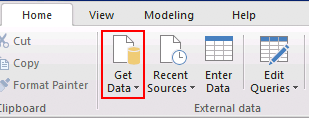
Start Microsoft Power Query and click on "Get Data".
-
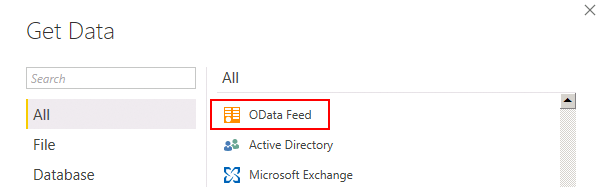
Choose "OData Feed."
-
Enter the Bridge Online URL of the Notubiz database in the window. Select the OK-button.
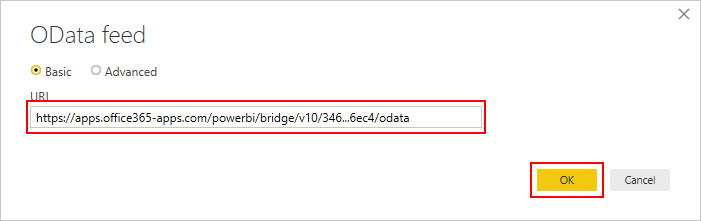
Sometimes Power Query does not accept the URL and a yellow warning sign appears. If so, add a '/' to the end of the URL and remove it again. Select the OK-button.
A message about missing authentication will appear if you have not previously recorded your login credentials in Power Query.
-
Select the "Basic" tab on the left.
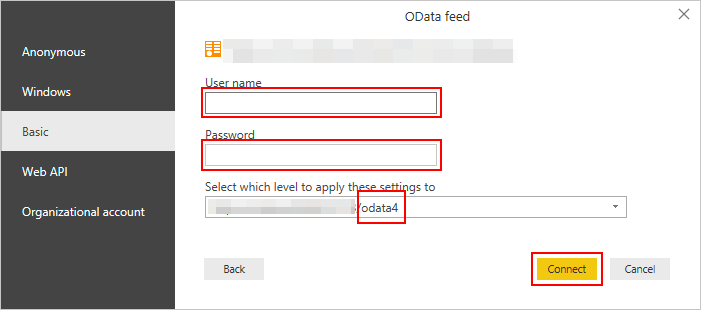
Enter the user name for Invantive Cloud.
Enter the password that you have set for Invantive Cloud.
You do not need to change the "Scope" under the "Choose which Level" menu unless you have specific reasons.
Select the OK-button.
You only need to perform these steps for linking Notubiz with Power Query once. From now on, you will find the linked data source in Power Query beneath "Recent Sources" in the menu.
Load Data in Power Query from Notubiz
A list of Notubiz tables appears for use in your dashboard. You can find these tables and their meaning on documentation.invantive.eu. A limited number of tables from the Notubiz documentation of Invantive are not visible from Power Query because they have parameters.
Execute the following steps to load data into your dashboard:
Select the table you want to use in the Navigator. You can also select multiple tables at once.
A preview of the data from Notubiz appears to the right when you select a table.
Select the OK-button.
All data from all selected tables are loaded directly by the connector into Power Query.
Loading can take a short or long time depending on the amount of data. The first time it takes noticeably longer anyway because the data is not yet in the "cache".
Advanced Power Query users can use the "Transform" button to increase the loading speed from Power Query by applying filters.
The Notubiz connection will cache the data. Your data will be stored encrypted. Power Query, especially during dashboard development, often retrieves the same data again. This cache provides a noticeable acceleration. The cached data is refreshed according to the duration you set at the virtual Notubiz database. By default, the duration is set to 4 hours; therefore, you will receive the same data for 4 hours via the connection.
Build a Notubiz Dashboard
In Power Query the data is now ready for use in the dashboard.
Now build your reports or dashboards.
Click "Refresh" to refresh the Notubiz data from Invantive Bridge Online.
Additional features
After an initial success with new insights through a custom report or analysis on Notubiz, you are going to create multiple dashboards on your Notubiz data. It is then more efficient to use Microsoft data flows so that the data is shared between the different dashboards within the online Power Query platform.
You might also use other Invantive connectors for a report or analysis. For this you can follow the steps described above. All Power Query connectors of Invantive work identically; only the registration of the database depends on the data source.
Finally, using Invantive Cloud you can also build software in the form of small web applications. This software can use the data in your database.